How to set up your two factor authentication?
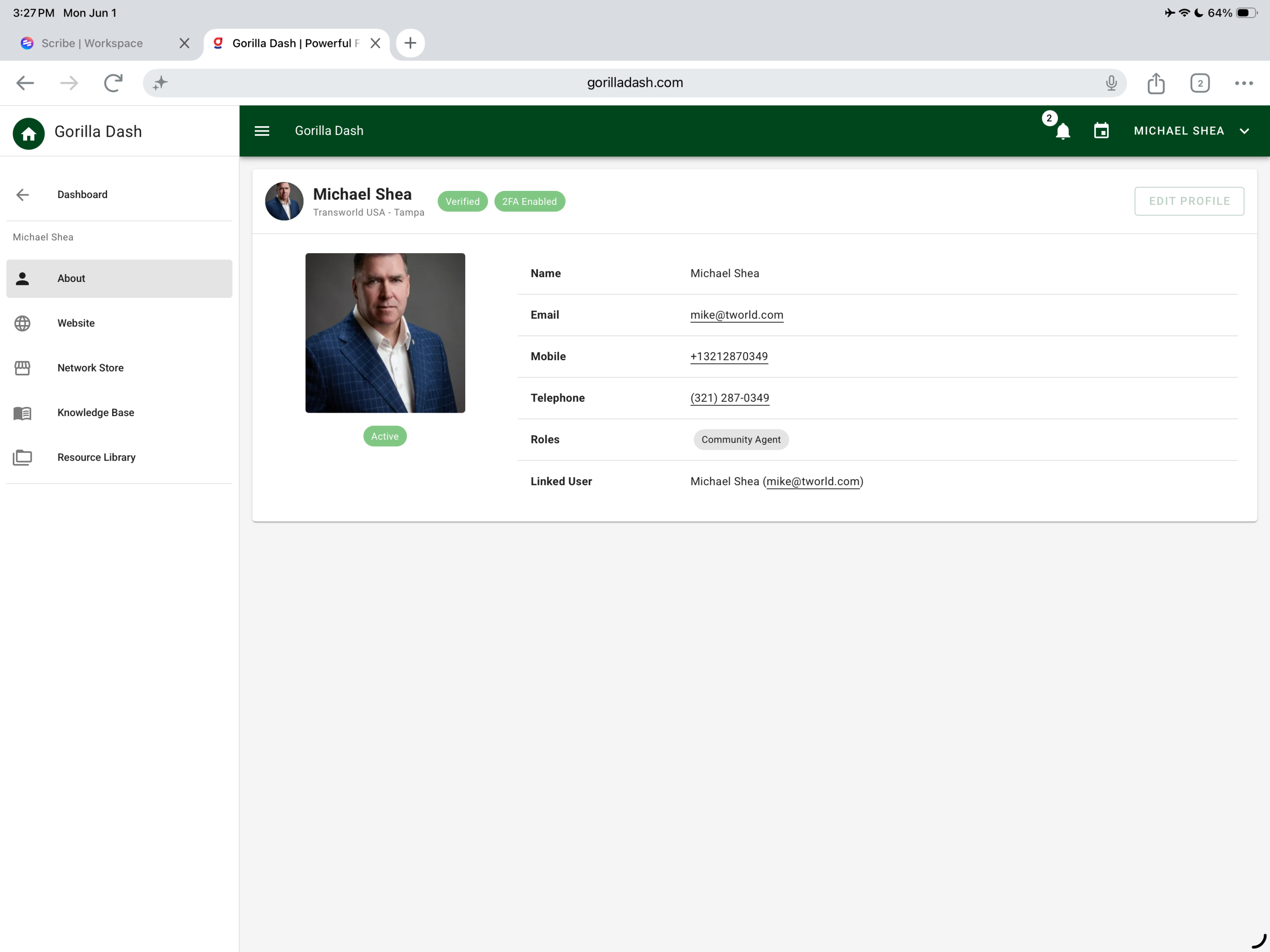
This guide shows team members how to quickly enable two-factor authentication and complete their account setup so they can accept a team invitation and manage site pages. It walks through secure setup of an authenticator app, scanning the QR, saving recovery codes (only shown once), and completing profile access. Following it prevents lockouts and secures your account.
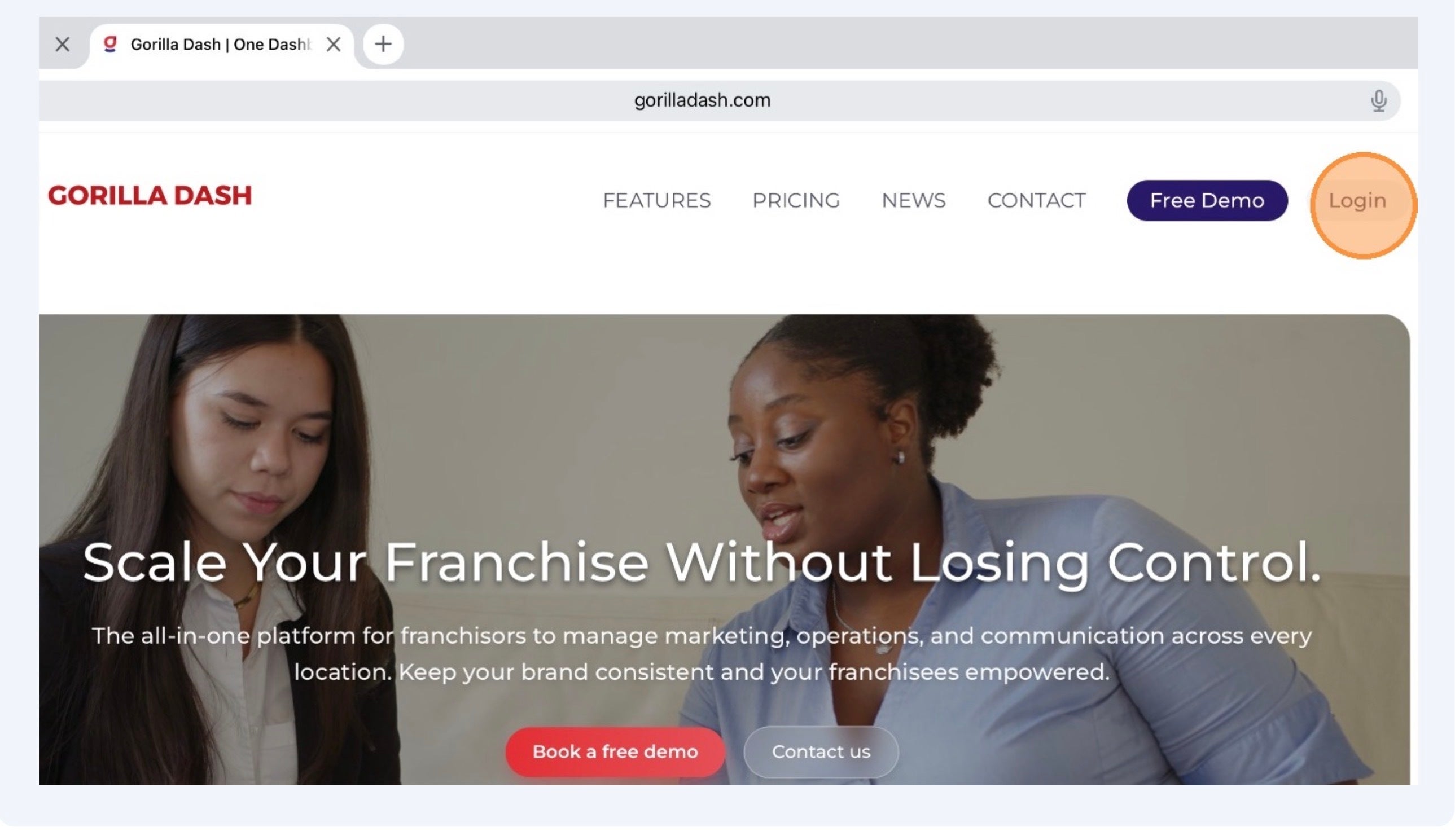
1. Visit GorillaDash.com, Tap here to log in.
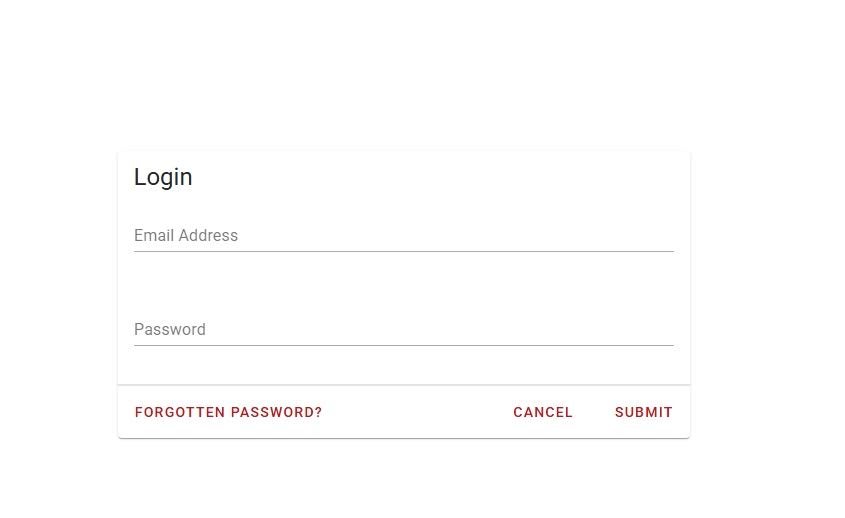
2. Type in your Username and Password
3. Read and accept the terms & conditions.
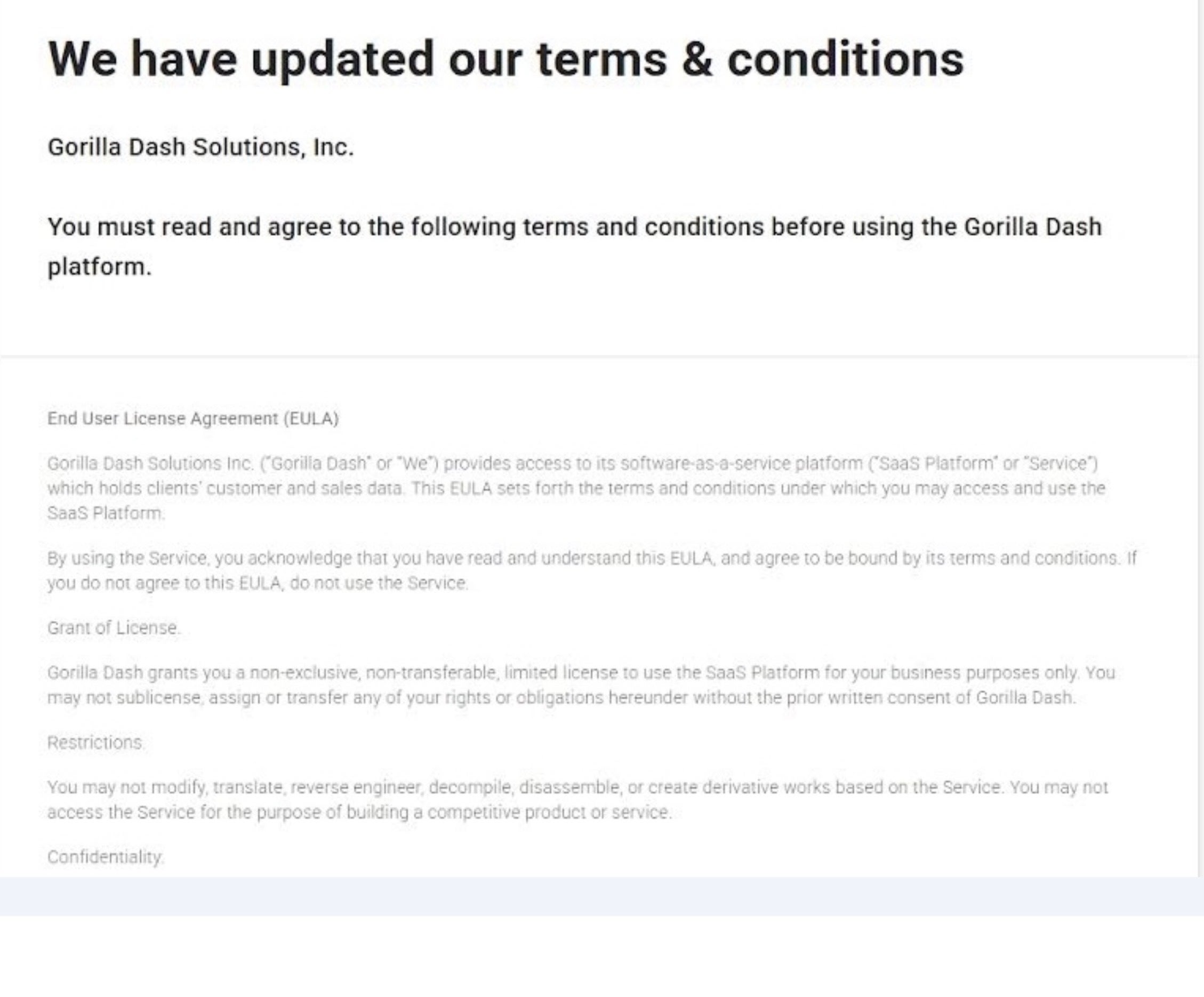
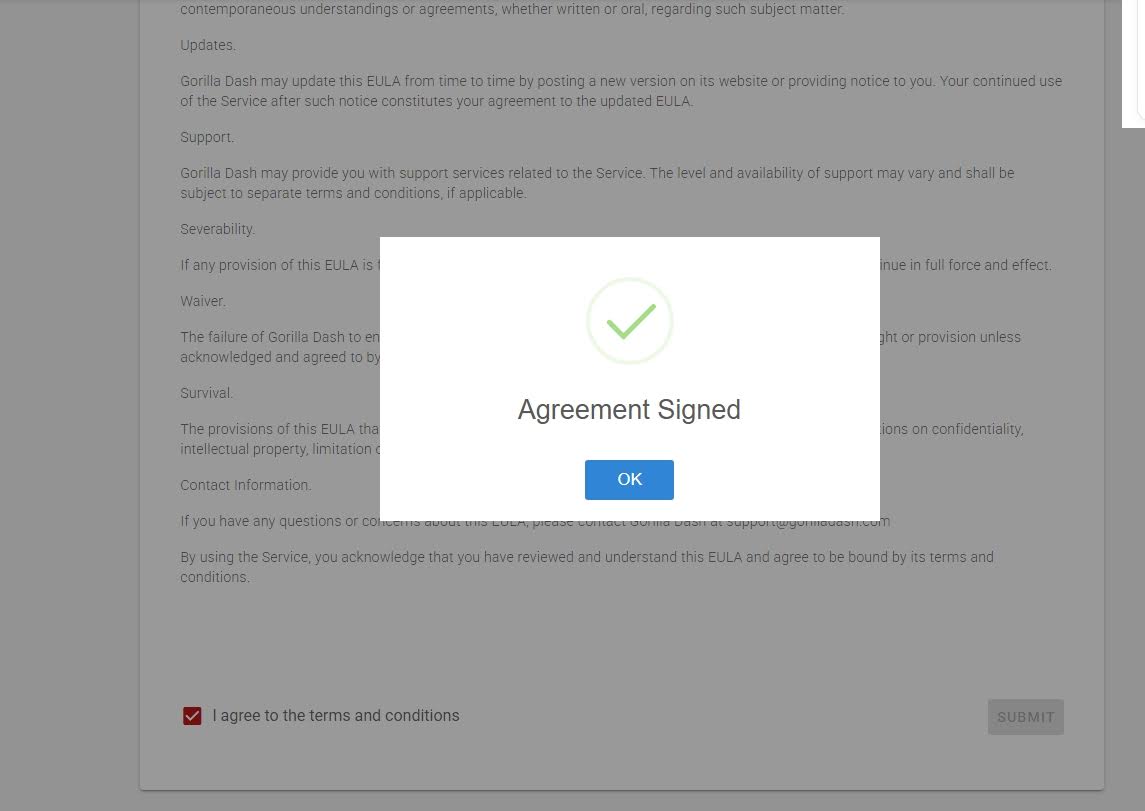
4. Agree to the terms and conditions and hit submit.
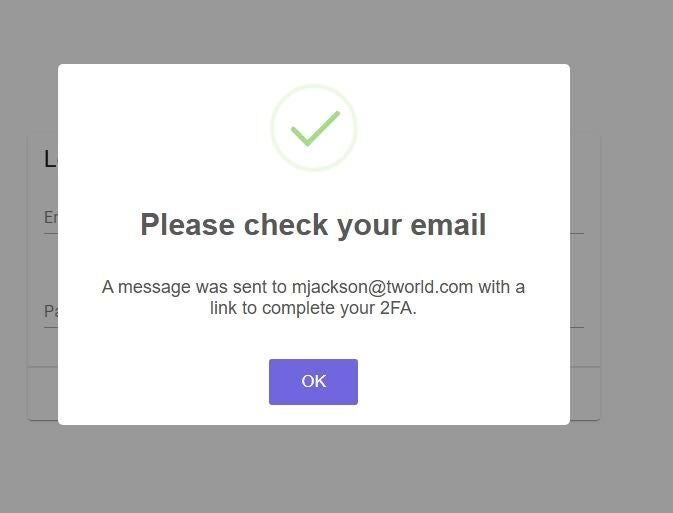
5. Once you log in again an email will be sent to you.
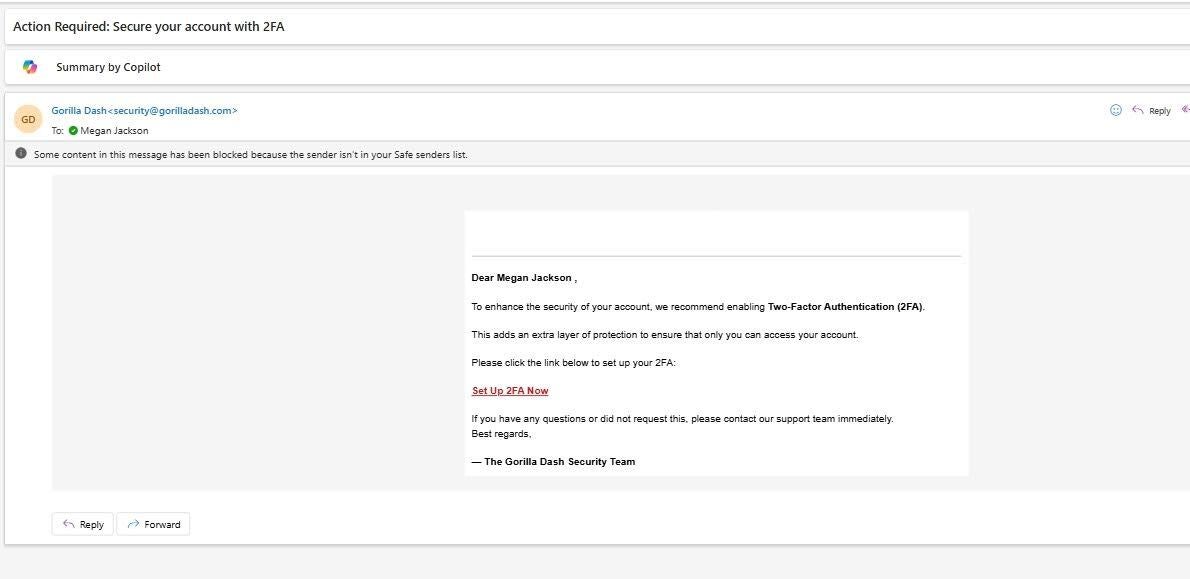
6. Follow the email prompt to set up your two-factor authentication.
Click the red text, Set Up 2FA Now.
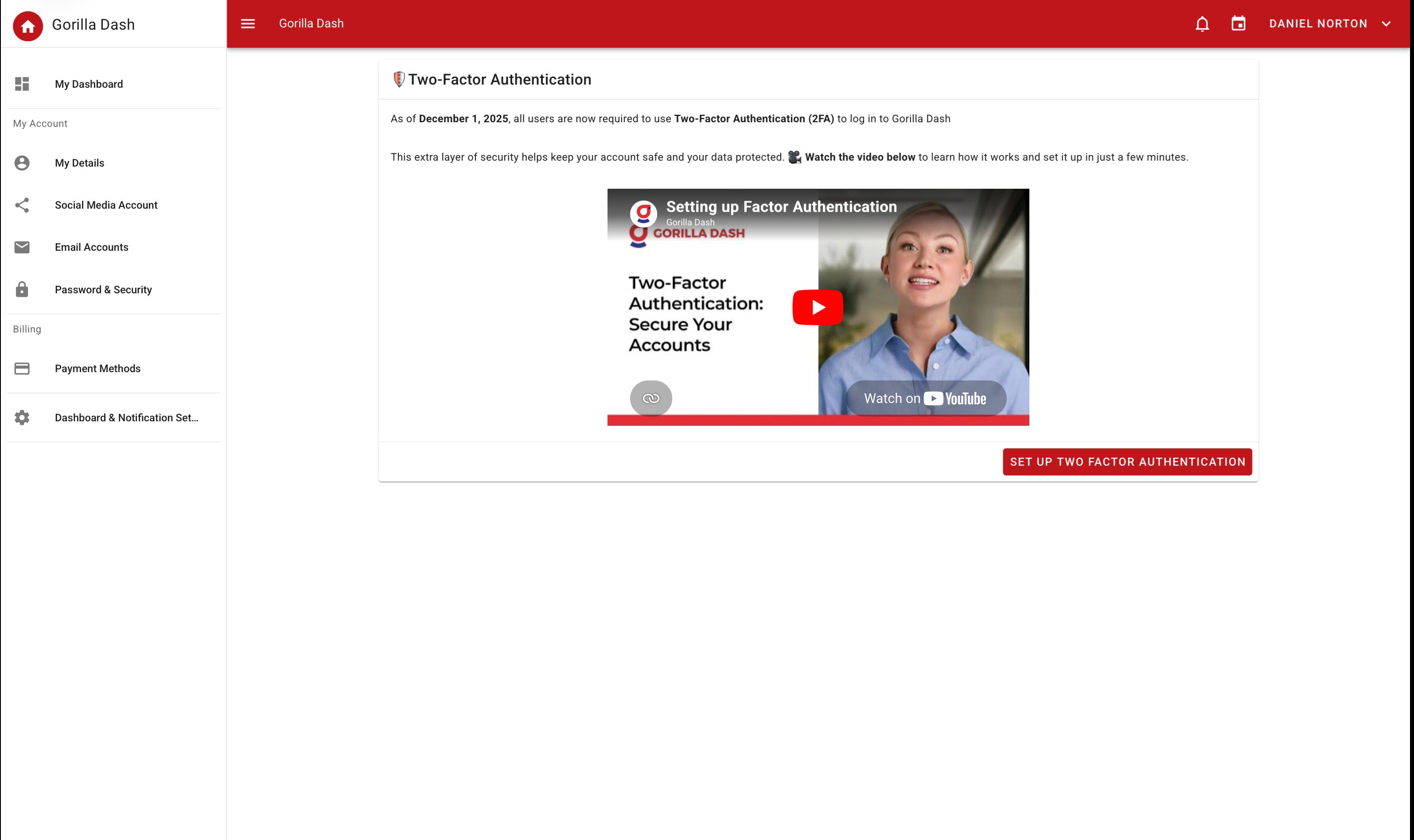
7. Click the Set Up Two Factor Authentication button.
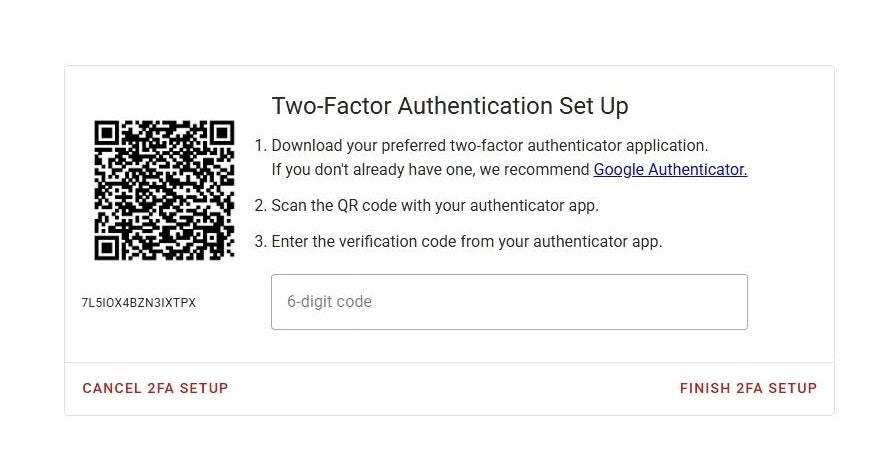
8. Follow the prompts - Scan the QR Code and add the codes to an authenticator of your choice. We recommend Google Authenticator.
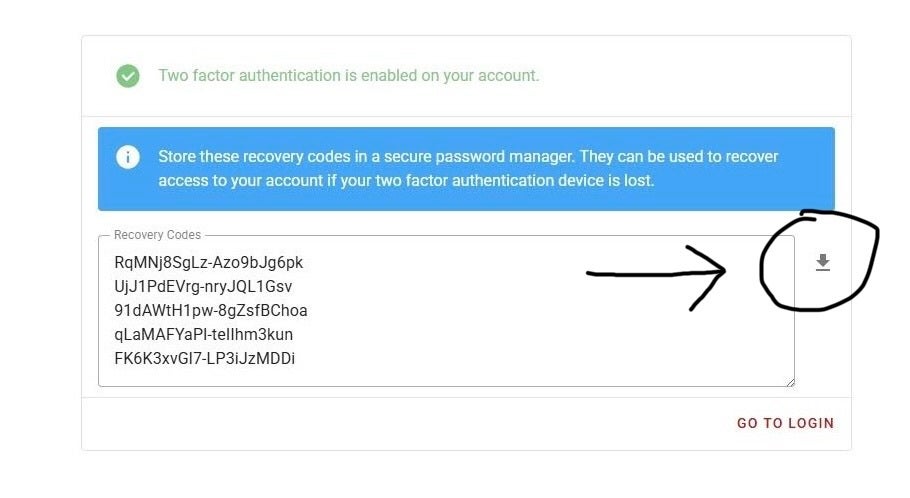
After you input your 6 digit code. This will be your only time to save your recovery codes. Make sure to download your recovery codes by selecting the gray arrow next to the list of codes or copy and paste it somewhere safe.
Reset 2FA when your authenticator app is lost or corrupted, or your codes don’t work
If you are locked out, your authenticator app is lost or corrupted, or your authenticator codes are no longer accepted—or if you can’t get past the 2FA screen—contact Support and ask us to reset two-factor authentication on your account. After Support resets your 2FA, you will need to set it up again. Your previous authenticator app entry and recovery codes will no longer work.
- Contact Support and request a 2FA reset for your account.
- After Support confirms the reset, log in to Gorilla Dash. Reset your password if required.
- When prompted, select Set up 2FA. You will receive an email — follow the link and instructions.
- When the QR code appears, scan it with your chosen authenticator app. Any previously saved Gorilla Dash entries in your authenticator app will no longer work; create a new entry and you can remove the old one.
- Save your new recovery codes in a safe place and replace any old codes.
- Remove any old Gorilla Dash entry from your authenticator app; it will not work after a reset.
- Save your new recovery codes and discard any old ones.
- You can use any standard authenticator app.
Can I turn off two-factor authentication?
No. Two-factor authentication is required for all users to protect accounts and meet security requirements. It cannot be disabled.
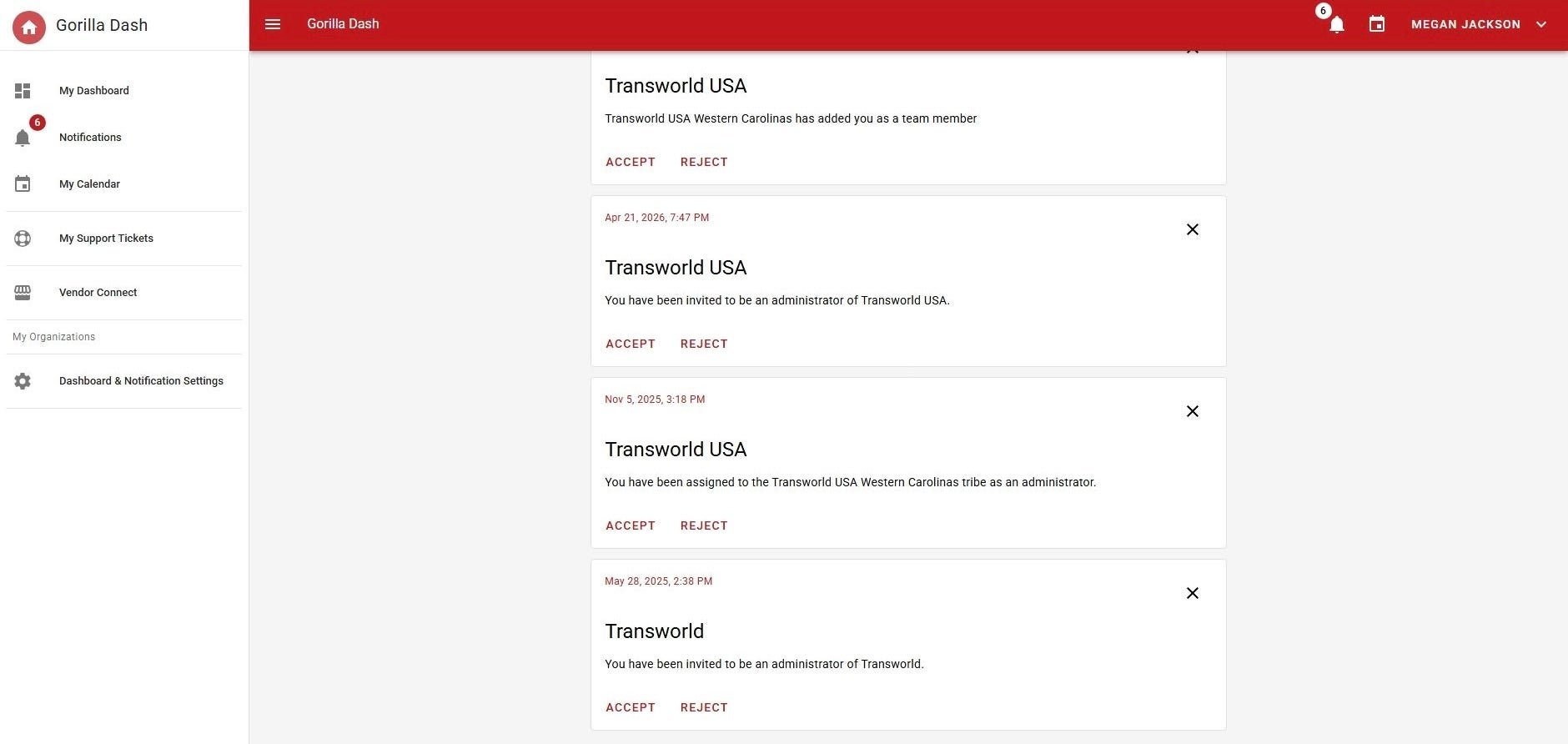
Log in and click your notifications - Accept your invitation to become a team member.